Showing posts with label kali linux. Show all posts

Wednesday, 13 February 2019

Kali Linux commands list | AtoZ Kali Linux commands

Kali Linux commands list - If You are looking for Basic Kali Linux commands or Kali Linux commands then, you are at right place here You get AtoZ all Kali Linux commands with basic and advanced Kali Linux commands.


AndroMacMaster


Kali Linux commands list | AtoZ Kali Linux commands

AndroMacMaster


  • apropos - Search Help manual pages (man -k)
  •  apt-get - Search for and install software packages (Debian)
  •  aptitude - Search for and install software packages (Debian)
  •  aspell - Spell Checker
  •  awk - Find and Replace text, database sort/validate/index
  • basename - Strip directory and suffix from filenames
  •  bash - GNU Bourne-Again Shell 
  • bc - Arbitrary precision calculator language
  •  bg - Send to background
  •  break - Exit from a loop
  •  builtin - Run a shell builtin
  •  bzip2 - Compress or decompress named files
  • cal - Display a calendar
  • case - Conditionally perform a command
  •  cat - Concatenate and print (display) the content of files
  •  cd - Change Directory
  •  cfdisk - Partition table manipulator for Linux
  •  chgrp - Change group ownership
  •  chmod - Change access permissions
  •  chown - Change file owner and group
  •  chroot - Run a command with a different root directory
  •  chkconfig - System services (runlevel)
  •  cksum - Print CRC checksum and byte counts
  •  clear - Clear terminal screen
  •  cmp - Compare two files
  •  comm - Compare two sorted files line by line
  •  command - Run a command – ignoring shell functions
  •  continue - Resume the next iteration of a loop
  •  cp -  Copy one or more files to another location
  •  cron - Daemon to execute scheduled commands
  •  crontab - Schedule a command to run at a later time
  •  csplit - Split a file into context-determined pieces
  •  cut - Divide a file into several parts
  • date - Display or change the date and time
  •  dc - Desk Calculator
  •  dd - Convert and copy a file, write disk headers, boot records
  •  ddrescue - Data recovery tool
  •  declare - Declare variables and give them attributes
  •  df - Display free disk space
  • diff Display the differences between two files
  •  diff3 - Show differences among three files
  •  dig - DNS lookup
  •  dir - Briefly list directory contents
  •  dircolors - Colour setup for `ls’
  •  dirname - Convert a full pathname to just a path
  •  dirs - Display list of remembered directories
  •  dmesg - Print kernel & driver messages
  •  du - Estimate file space usage
  •  echo - Display message on screen
  •  egrep - Search files for lines that match an extended expression
  •  eject - Eject removable media
  •  enable - Enable and disable builtin shell commands
  •  env - Environment variables
  •  ethtool - Ethernet card settings
  •  eval - Evaluate several commands/arguments
  •  exec - Execute a command
  •  exit - Exit the shell
  •  expect - Automate arbitrary applications accessed over a terminal
  •  expand - Convert tabs to spaces
  •  export - Set an environment variable
  •  expr - Evaluate expressions
  •  false - Do nothing, unsuccessfully
  •  fdformat - Low-level format a floppy disk
  •  fdisk - Partition table manipulator for Linux
  •  fg - Send job to foreground
  •  fgrep - Search files for lines that match a fixed string
  •  file - Determine file type
  •  find - Search for files that meet a desired criteria
  •  fmt - Reformat paragraph text
  •  fold - Wrap text to fit a specified width
  •  for Expand words, and execute commands
  •  format - Format disks or tapes
  •  free - Display memory usage
  •  fsck - File system consistency check and repair
  •  ftp - File Transfer Protocol
  •  function - Define Function Macros
  •  fuser - Identify/kill the process that is accessing a file
  •  gawk - Find and Replace text within files
  •  getopts - Parse positional parameters
  •  grep - Search files for lines that match a given pattern
  •  groupadd - Add a user security group
  •  groupdel - Delete a group
  •  groupmod - Modify a group
  •  groups - Print group names a user is in
  • gzip - Compress or decompress named files
  •  hash - Remember the full pathname of a name argument
  •  head - Output the first part of files
  •  help - Display help for a built-in command
  •  history - Command History
  •  hostname - Print or set system name
  •  iconv - Convert the character set of a file
  •  id - Print user and group id’s
  •  if - Conditionally perform a command
  •  ifconfig - Configure a network interface
  •  ifdown - Stop a network interface
  •  ifup - Start a network interface up
  •  import - Capture an X server screen and save the image to file
  •  install - Copy files and set attributes
  •  jobs -  List active jobs
  •  join - Join lines on a common field
  •  kill - Stop a process from running
  •  killall - Kill processes by name
  •  less - Display output one screen at a time
  •  let - Perform arithmetic on shell variables
  •  ln - Create a symbolic link to a file
  •  local - Create variables
  • locate - Find files
  •  logname - Print current login name
  •  logout - Exit a login shell
  •  look - Display lines beginning with a given string
  •  lpc - Line printer control program
  •  lpr - Off line print
  •  lprint - Print a file
  •  lprintd - Abort a print job
  •  lprintq - List the print queue
  •  lprm - Remove jobs from the print queue
  •  ls - List information about files
  •  lsof - List open files
  •  make - Recompile a group of programs
  •  man - Help manual
  •  mkdir - Create new folders
  •  mkfifo - Make FIFOs (named pipes)
  •  mkisofs - Create an hybrid ISO9660/JOLIET/HFS filesystem
  •  mknod - Make block or character special files
  •  more - Display output one screen at a time
  •  mount - Mount a file system
  • mtools - Manipulate MS-DOS files
  •  mtr Network diagnostics (traceroute/ping)
  •  mv - Move or rename files or directories
  •  mmv - Mass Move and rename files
  •  netstat - Networking information
  •  nice - Set the priority of a command or job
  •  nl - Number lines and write files
  •  nohup - Run a command immune to hangups
  •  notify-send - Send desktop notifications
  •  nslookup - Query Internet name servers interactively
  •  open - Open a file in its default application
  •  op - Operator access
  •  passwd - Modify a user password
  •  paste - Merge lines of files
  •  pathchk - Check file name portability
  •  ping - Test a network connection
  •  pkill - Stop processes from running
  •  popd - Restore the previous value of the current directory
  •  pr - Prepare files for printing
  •  printcap - Printer capability database
  •  printenv - Print environment variables
  •  printf - Format and print data
  •  ps - Process status
  •  pushd - Save and then change the current directory
  •  pwd - Print Working Directory
  •  quota - Display disk usage and limits
  •  quotacheck-  Scan a file system for disk usage
  •  quotactl - Set disk quotas
  •  ram - ram disk device
  •  rcp - Copy files between two machines
  •  read - Read a line from standard input
  •  readarray - Read from stdin into an array variable
  •  readonly - Mark variables/functions as readonly
  •  reboot - Reboot the system
  •  rename - Rename files
  •  renice - Alter priority of running processes
  •  remsync - Synchronize remote files via email
  •  return - Exit a shell function
  •  rev - Reverse lines of a file
  •  rm - Remove files
  •  rmdir - Remove folders
  •  rsync - Remote file copy (Synchronize file trees)
  • screen - Multiplex terminal, run remote shells via ssh
  •  scp - Secure copy (remote file copy)
  •  sdiff - Merge two files interactively
  •  sed - Stream Editor
  •  select - Accept keyboard input
  •  seq - Print numeric sequences
  •  set - Manipulate shell variables and functions
  •  sftp - Secure File Transfer Program
  •  shift - Shift positional parameters
  •  shopt - Shell Options
  •  shutdown - Shutdown or restart linux
  •  sleep - Delay for a specified time
  •  slocate - Find files
  •  sort - Sort text files
  •  source - Run commands from a file
  •  split - Split a file into fixed-size pieces
  •  ssh - Secure Shell client (remote login program)
  •  strace - Trace system calls and signals
  •  su - Substitute user identity
  •  sudo - Execute a command as another user
  •  sum - Print a checksum for a file
  •  suspend - Suspend execution of this shell
  •  symlink - Make a new name for a file
  •  sync - Synchronize data on disk with memory
  •  tail - Output the last part of file
  •  tar - Tape Archiver
  •  tee - Redirect output to multiple files
  •  test - Evaluate a conditional expression
  •  time - Measure Program running time
  •  times - User and system times
  •  touch - Change file timestamps
  •  top - List processes running on the system
  •  traceroute - Trace Route to Host
  •  trap - Run a command when a signal is set(bourne)
  •  tr - Translate, squeeze, and/or delete characters
  •  true - Do nothing, successfully
  •  tsort - Topological sort
  •  tty - Print filename of terminal on stdin
  •  type - Describe a command
  •  ulimit - Limit user resources
  •  umask - Users file creation mask
  •  umount - Unmount a device
  •  unalias - Remove an alias
  •  uname - Print system information
  •  unexpand - Convert spaces to tabs
  •  uniq - Uniquify files
  • units - Convert units from one scale to another
  •  unset - Remove variable or function names
  •  unshar - Unpack shell archive scripts
  •  until - Execute commands (until error)
  •  uptime - Show uptime
  •  useradd - Create new user account
  •  usermod - Modify user account
  •  users - List users currently logged in
  •  uuencode - Encode a binary file
  •  uudecode - Decode a file created by uuencode
  •  v - Verbosely list directory contents (`ls -l -b’)
  •  vdir - Verbosely list directory contents (`ls -l -b’)
  •  vi - Text Editor
  •  vmstat - Report virtual memory statistics
  •  wait - Wait for a process to complete
  •  watch - Execute/display a program periodically
  •  wc - Print byte, word, and line counts
  •  whereis - Search the user’s $path, man pages and source files for a program
  •  which - Search the user’s $path for a program file
  •  while - Execute commands
  •  who - Print all usernames currently logged in
  •  whoami - Print the current user id and name (`id -un’)
  •  wget - Retrieve web pages or files via HTTP, HTTPS or FTP
  •  write - Send a message to another user
  •  xargs - Execute utility, passing constructed argument lists
  •  xdg-open - Open a file or URL in the user’s preferred application
  •  yes - Print a string until interrupted

AndroMacMaster


Share this post to your Kali Linux learner friends and to your cousins, brothers and sisters to know them Kali Linux commands.
Thanks for visiting AndroMacMaster.


Saturday, 26 January 2019

Kali Linux Hacking tutorials : Perfect guide to Beginners {2019-20} { Lec #2}


learn kali Linux tutorial, become hacker,
If you just installed Kali Linux or You want to become an Ethical Hacker then you come to right place. In this article, I have covered Kali Linux tutorials for beginners to become an advance user.
After installing Kali Linux successfully you will looking for solution of
  • where to start learning it
  • How to use it
Everyone face these problems even me But after covering these tutorials you have ability to make own tutorials or understand every tutorials available on the INTERNET
You just need to understand this articles step by step.
Requirements
  • Internet connection
  • Passion
OK, first of all read these hacking terms before moving to kali linux tutorials.

Hacking terms you must know

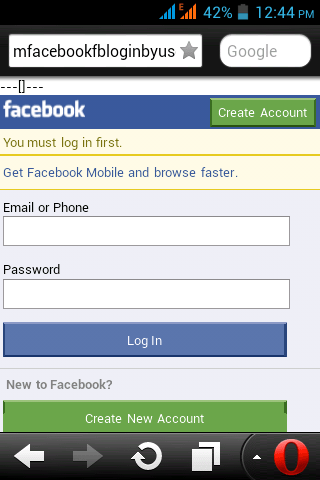
Phishing: basically, phishing is a way to hack online accounts (like Facebook, Gmail) by making fake login page similar to the original login page. When you open a phishing page it looks like an original page, for example, see this screenshotphishing
Do yo think it is original but it is fake see the URL [Generally all online account login websites have SSL certificate mean https [ s mean secure].
The advance version of phishing:
Desktop Phishing
Tabnapping
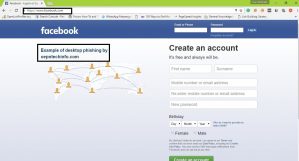
Desktop Phishing: This is the advanced type of phishing. It is same as above method, but in this approach, URL is not replaced your computer is affected by this process and when you open facebook.com hacker fake page will open, but URL will not change. Here I try to explain itdesktop phishingAll modern browser detect desktop phishing and you need physical access to create desktop phishing page. Search on google if you need more info but enough for beginners.

Tabnapping: If you open many tabs on browsing the internet then your account can be easily hacked by this method. In this attack when the victim clicks on the link from another site, for example, You and me are friends on Facebook, and I send you to link on Facebook by the message.
When you open the link and 2-3 another tab, then your facebook tab page Url will be replaced by another page. You will think your account is logged out automatically. You will again Login your account and I will get your password you will be redirected to facebook.com
Keylogger: this is software of hardware which records every word typed by the victim from the keyboard. The main purpose of keyloggers are for hacking online accounts like FB because it records keyword, so it will also record password and username.  Here are two types of Keylogger
  1. Software keylogger: These are software which records every keystroke. You can download free keylogger from the internet or make own if you can good knowledge of programming.
  2. Hardware Keylogger: Hardware keylogger are is hardware device which needs to connect to computer then it records our keystrokes. Nowadays Hardware keyloggers are attached to the keyboard for hacking credit cards etc. Here are some hardware keyloggershardware keylogger
Brute force attack: Another great way to hack passwords, Hacker just guess password length and characters used for the password. After that software combination all these factors and create so many words and try to apply as every word as a password. It is a time-consuming method.
Wordlist attack: It is similar to above one but in these first hacker generates words and save these words to file using software like crunch. Another software applies every word as a password. This attack used in hacking wpa\wpa2a. Aircrack can try 969 words/second as the password.
Encryption: Generally it is used for encrypting the password in the database. In the database, it is stored in encrypted format. E.x.
Original message: This is a line
Encrypted format: gfEDdWzoKboa9gTFLeb2D476vTg
It protects your password if a hacker hack website database. if you are from India and then you know about paytm.
Paytm use 128-bit encryption mean if it will increase your password length which has 2 128 combinations for applying brute force attack.
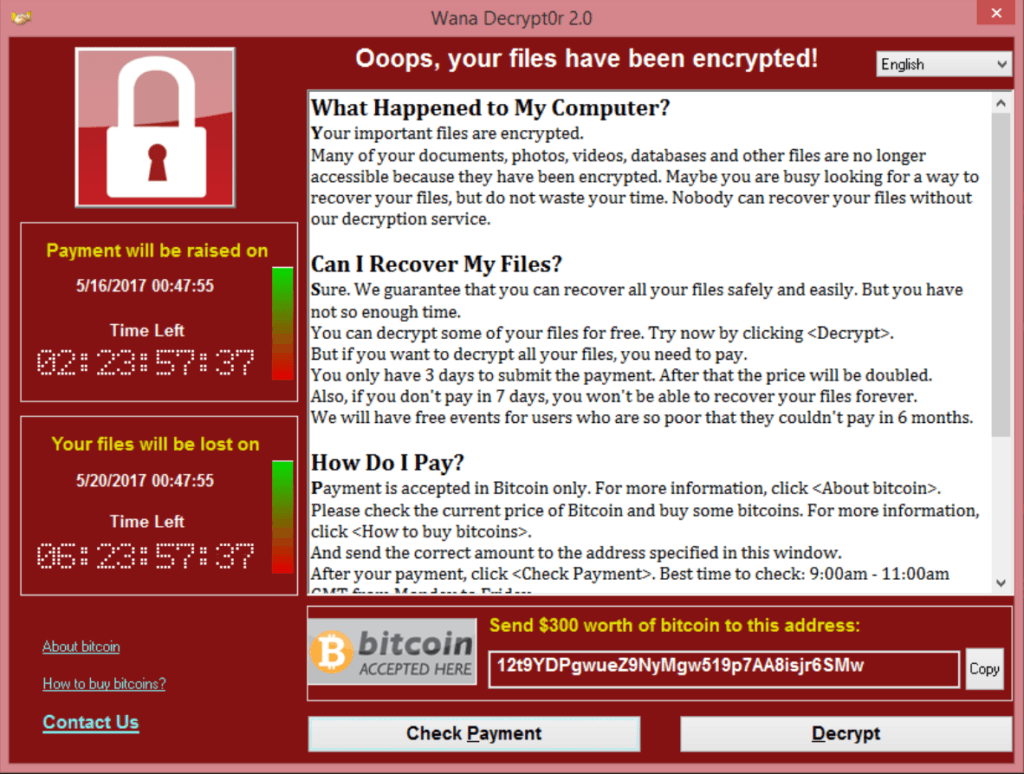
Ransomeware: It is a code program by Hacker which encrypts (mean make them so nobody can open that data) your whole Hard disk data then ask for some Money if you want to remover your data. you can format your full hard disk or pay money to Hacker.
ransomware
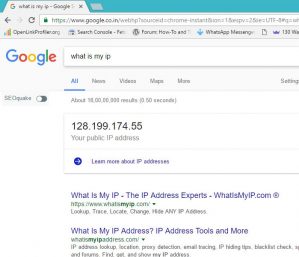
IP addressIp stands for internet protocol. It is the address of our Device. To find your IP address type in google what is my IP.my ip addressThere are two types of Ip address. I) Public IP II) private IP. We connected through the internet by Public IP address. It can be changed by Vpn or using the proxy.
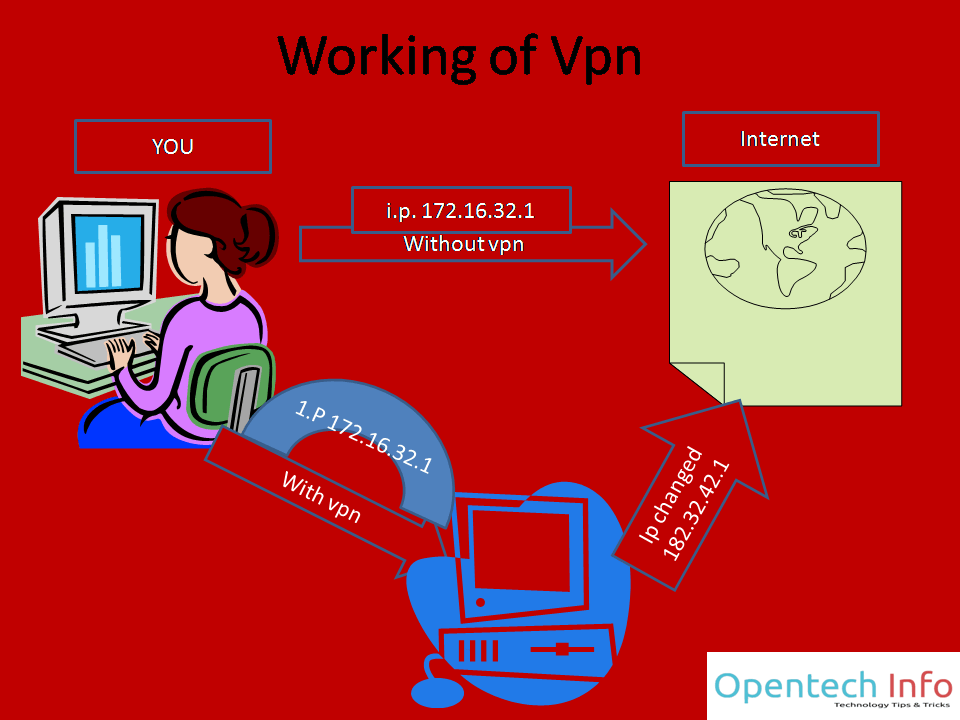
Vpn: VPN stands for virtual private network. VPN basically change your IP address. If you are using a Vpn and doing anything, nobody can know until VPN company does not expose you [ free VPN can if you doing something serious Ilegal]. Here is the working of Vpnworking-of-vpn
Web Server: 90% of you know what is web server but I you don’t know! No problem. It is a computer where files of a website are available. For example, above image, text etc are stored on the computer it is known as the web server.
Dos attack: it stands for Denial of service. Mainly used to make website down or unavailable. Fake traffic is sent to the web server. When data exceeds the limit of bandwidth, server crushes. Here is server down website screenshot when the server is down.


server down
source http://sociable.co/


The easiest way to protect Dos attack is a firewall which blocks activity from a particular computer.
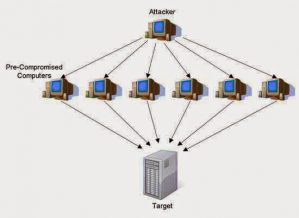
DDOS attack: it stands for Distributed Denial of service. In dos attack, there is only one machine but it DDOS there is multiple fake devices as shown in the screenshot. There is only one way to protect DDOS attack. Again firewall but here is working of the firewall is different Firewall can tolerate this attack like me I am using CloudFlare CDN for protecting DDOS attack.

ddos attack working
source: gohacking.com


SQL injection: DDOS attack crush the server but SQL injection helps you to hack websites. Hacker injects queries in the website database.
Social engineering: It is not the hacking method. It is Hacking by the average person. Guessing password technique is known as social engineering. I am not expert in this, and it takes a lot of time. Different for the different person so very time-consuming.

Language You should learn for Hacking

Python: Ask from any hacker. Every hacker must recommend Python. It is so easy and powerful. Here is Python course for beginners. After completing you will able to read or write any Python syntax. Beside Hacking, Python also helps in data science.
But you can’t hack anything using python for Hacking websites then you have to learn SQL injection, XSS. Now don’t search on google learn SQL injection because for understanding SQL injection you have knowledge of SQL Database, PHP, Javascript, CSS, and HTML. This is a long process.
Types of Hacker: There are three types of Hacker
  1. Blackhat Hacker: These hackers are criminals they miss use hacking knowledge.
  2. White hat hacker: These hackers are ethical hacker, or they use their knowledge for protecting computers
  3. Gray hat hacker: This type of hacker work for money, or you can they work like both white hat and gray hat hackers.

Kali Linux Hacking tutorials

installing kali linux

How to install Kali Linux step by step [all ways]

Welcome to the second chapter In this we will discuss installing Kali Linux If you don’t know what is Kali Linux? It is operating system used by hackers because it has all software that needed in Hacking. It is free and open source Installing Kali Linux is some complex for beginners here is the full post to know how to fix it. You can dual boot with windows or install it inside the window known as virtualization. No more words let come to point How to dual boot with Kali
linux

Basic Kali Linux commands for Hacking

Hope you have installed Kali Linux in virtual box or using any other way. In this lesson, I am talking about basic commands in Kali Linux, not all only that you needed in starting a + free source of learning all Linux commands. Before commands, I want to introduce you Terminal. The terminal is software as commands prompt available is window operating system. Linux works on command system, hacking also. You can open terminal from the sidebar as shown in the screenshot. To understand File directory of Linux is important. Directory mean folder root is the Main directory of Linux it is shown denoted
how to hide Ip adress

How to Hide your Identity/IP over the internet

In this lesson, we well talk about how can you hide your identity/browse anonymously or Change Ip address There are several ways to hide or change your Ip address in Kali Linux Using proxychain Using Vpn Make sure you visit hacking for beginners to know how proxy and VPN are working. In this method, you change IP address by going the number of proxy as wish as you want. Kali has a proxy file you have to edit your working proxy manually. Proxychain is working by three ways. Static: by default it is static. In this system is go all proxy. If
How to hack wifi with kali linux

How hacker hack wifi and Protection

Now, day’s we can’t imagine our life without the internet. Wi-Fi is the most popular internet connection. That’s why Hack WiFi is most popular on Google trends from hacking. In this post, I am guiding you about how can you hack and secure your wifi. Here is the basic guide for beginners. Here I have mentioned working methods of wireless network attacks and also mention software. I always prefer Kali Linux operating system for any hacking. Kali has preinstalled all tools that are needed in wifi hacking like aircrack-ng (best software to crack a wifi). No doubt some software also available for
getting start with metasploit

Metasploit Tutorial for beginners: Master in 5 minutes

In this post, we will talk about the Metasploit framework. I am sure you have enough heard about Metasploit and maybe still confuse what is this and how to use it? It is framework mean it is the collection of number of Softwares. You can gather information, make malware, hack FTP, hack Android, and many other things. You will know when you use it. This is a pre-installed framework in Kali Linux or parrot. It has paid and free version. Off course, Kali has a free version. Not only in Kali you can install it in the window too. Metasploit is also integrated
getting start with metasploit

Sql injection Tutorials: Beginners Guide website hacking

For the website hacking, SQL injection is very famous. In this article, I will explain everything from scratch.
Note: Most of the visitors will not understand with tutorials if you don’t have any patience.
To understand SQL injection first you should know
what is SQL
well, SQL is the query structured language used editing database
After reading all this, you have some hacking skills here are some pdf about Kali Linux Hacking which you should read
Web penetration testing with Kali Linux:
I like this book here a detailed guide about website hacking from information gathering to exploiting. Here are not only Kali tools also some other tools like websites for the collection of information which is helpful. Here is explained all attacks like SQL INJECTION, XSS, Exploiting server flaws, Authentication & Hijacking techniques are described. You can download it free or buy from Amazon at $3.92
Basic Security Testing with Kali Linux:
For beginners, this is the best source. It will teach you from starting like kali overview, Metasploit Tutorials, Information Gathering, Exploiting Windows and Linux, wireless attack, password hacking techniques and security tips for your network, etc.
Buy from Amazon Amazon
Mastering Kali Linux for advanced penetration:
As evident from this book name, it is for masters. Here is physical security, social engineering, web services and attacking network direct end user are explained very well. For those who want to make the career in It Security, it is the best to book.
Buy from Amazon

Further steps to become master in Hacking

Get free paid video hacking course by sharing this: If you share this post you will receieve a video hacking course (orginal price is $10). Believe it one of best course at this price
Networking: networking is an important part of Hacking. On the internet thousands of thousand blog available to learn networking.
Tools.kali.org: this is a website for learning the use of any Hacking tools visit it daily and learn something new.
Websites you should visit:
tool.kali.org does not provide hacking tutorials Check out these websites. I advise you to visit daily.
Null-byte: today this is no. Blog In Hacking/pen testing niche. I visit daily null byte also available forums to ask question
Github: On Github, you can find scripts of any language related to anything like keylogging, etc.
Now you know your path to become a Pen tester.
If you have any suggestion related these Kali Linux tutorials then you can mention your suggestion using comments

Basic Kali Linux commands for Hacking { Lec #3}

Chapter 3
 linux
Hope you have installed Kali Linux in virtual box or using any other way.
In this lesson, I am talking about basic commands in Kali Linux, not all only that you needed in starting a + free source of learning all Linux commands.
Before commands, I want to introduce you Terminal.
The terminal is software as commands prompt available is window operating system. Linux works on command system, hacking also.
You can open terminal from the sidebar as shown in the screenshot.
To understand File directory of Linux is important.
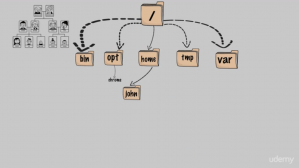
Directory mean folder root is the Main directory of Linux it is shown denoted by /
ll other folders of Linux are subdirectories some important Subdirectories are shown in the screenshot.
Linux file system
Now / [known as root] is parent directory of Linux. bin, opt, home, tmp, var, etc are subdirectories.
Bin: it stands for binary.  It contains all commands.
opt: opt mean optional. In this directory all program available what you want to install like chrome.
home: This directory has personal data which made when you create an account like john in above screenshot.
tmp: In this directory all temporary data
var: It contain variable data that changes over time.
Enough for beginner
Also, read:
Free keyloggers apps for android

Commands for Linux beginner

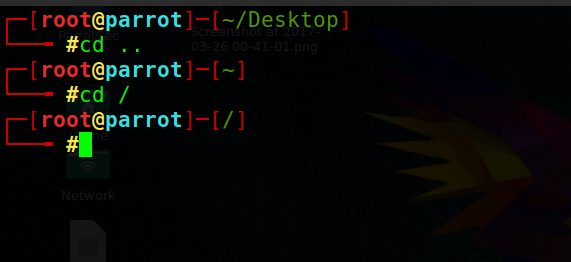
cd: for changing current working directory cd command is used.  When you turn on PC and open terminal, you are in the home directory of the login user. Here are examples of using cd to change directories.
cd .. This command will up your directory. If you are present in /root/Downloads then typing this will change directory to /root/
cd / this command will create / as your working directory
cd Downloads it will create Downloads as the working directory if folder present in it.cd command.
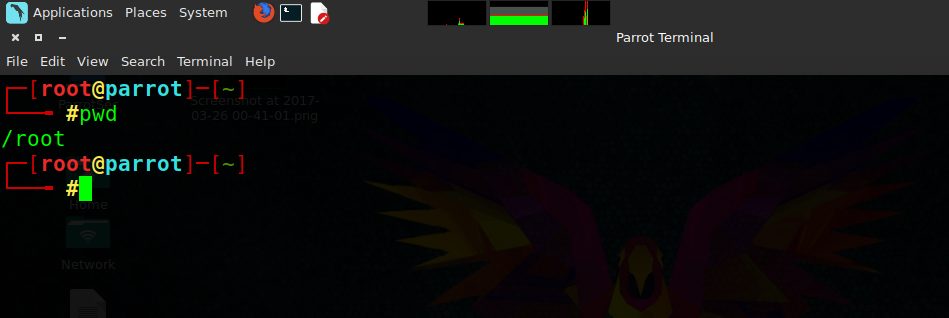
pwd: it stands for print working directory. It will show directory you are present in it. pwd
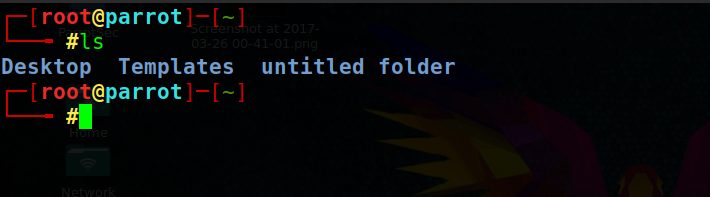
ls: it prints all the directories, files present in working directory present in current directory like here is the screenshot of / [root directories]ls
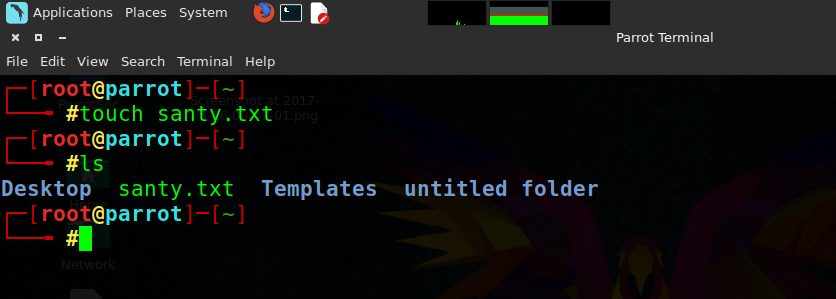
-ls -la [it will print everything in the list and all folder even hidden] touch: if you want to create files anywhere. Syntext touch filename. Above command create a file name of the filename in the directory you are present. touch
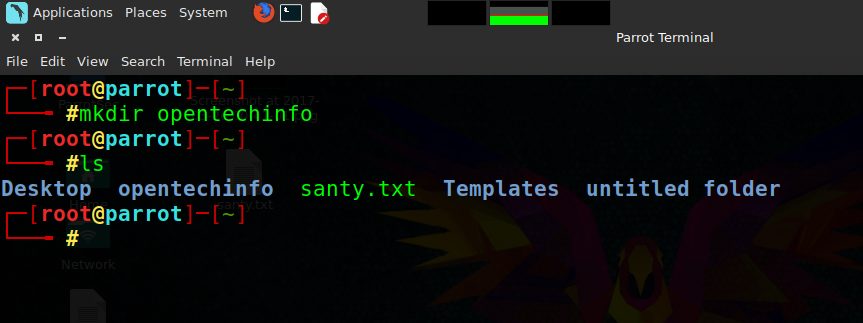
mkdir: To create folder/directories this command is used. Just type mkdir directory name and it will create the directory. type ls to see created directory and cd directory name to go into the folder.mkdir
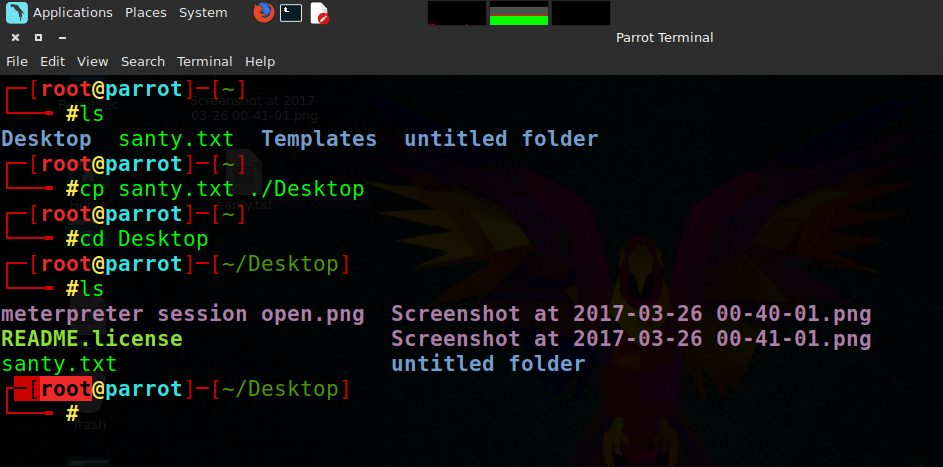
cp: cp mean copy. Here is syntax
cp file to copy place to paste
e.x. cp santy.txt /Downloads cp command
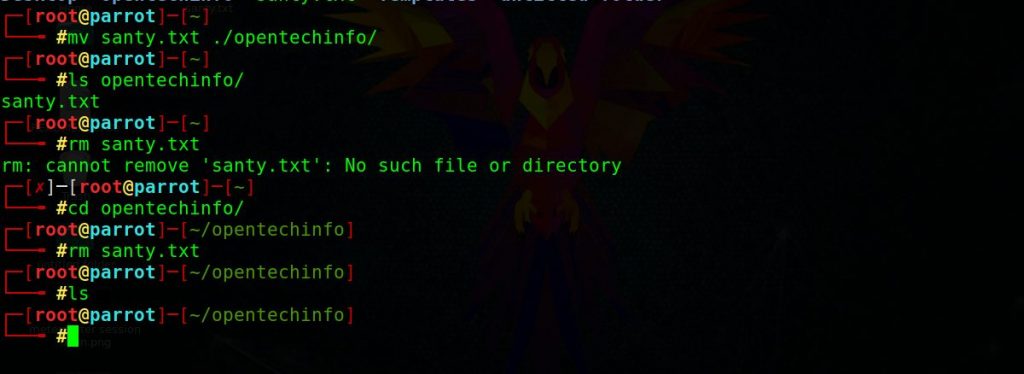
mv: mv mean move. Syntax is similar to cp
mv santy.txt /opentechinfo
rm: rm stands for remove. type rm filename to remove any file etc. To remove folder type rm -rf folder/directory name. Never type rm -rf / because this will erase everything from the computer.mv command
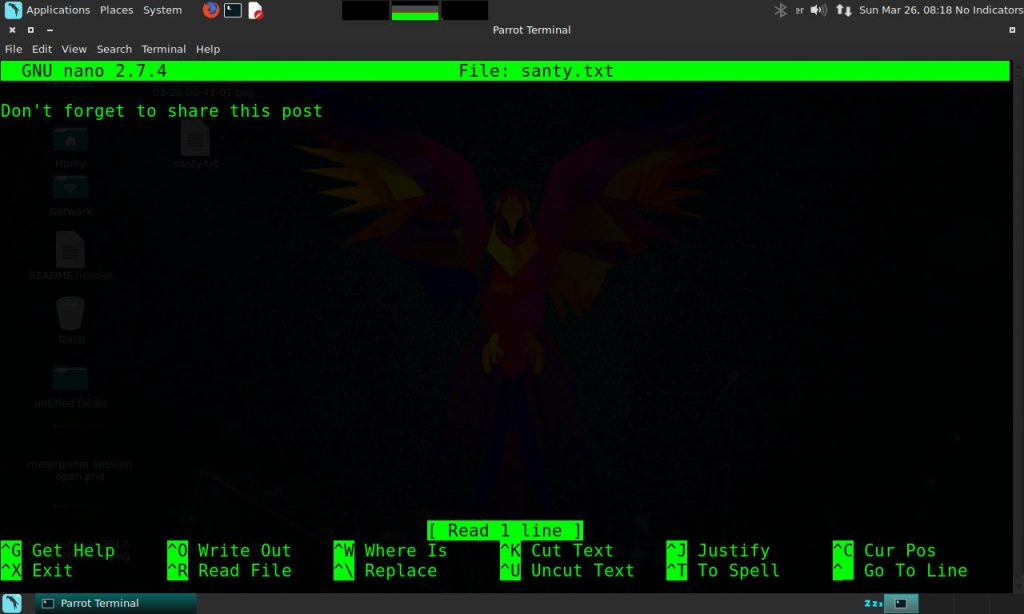
Nano: For reading a file in Terminal is can be done with the help of nano commands. Nano file name.
E.x.
root@kali:~# nano santy.txt
here is what you get if santy.txt file  is present
nano
To exit this press ctrl+X or read shortcut written blow.
These commands enough for beginners but if you want to learn more about these commands then take this Linux commands command free course

Next post

Basic Kali Linux commands for Hacking 1

How to Hide your Identity/IP over the internet

In this lesson, we well talk about how can you hide your identity/browse anonymously or Change Ip address There are several ways to hide or change your Ip address in Kali Linux Using proxychain Using Vpn Make sure you visit hacking for beginners to know how proxy and VPN are working. In this method, you change IP address by going the number of proxy as wish as you want. Kali has a proxy file you have to edit your working proxy manually. Proxychain is working by three ways. Static: by default it is static. In this system is go all proxy. If

How to install Kali Linux tools in windows { Lec #1}

You know the frustrating thing is about Kali Linux it does not support all computer so everybody can install it.
Every time I install Kali Linux, it shows invalid partition table.
Frustrating Right!
And if you install it in virtual box or VMware then you will never enjoy real speed + spend the extra charge to buy a wireless adapter.
In this post I will solve your all problems Trust me! install kali linux hacking tools in windows
If you are looking for Best Kali Linux alternative or How to turn a window os into the Hacking operating system or install Kali Linux tools in windows without dual boot, then you are on right place.
Also, read:
How to hack facebook with android phone [6ways]
Ok, Let’s come to point. There is a software for Microsoft Window OS that has inbuilt literally all Kali Linux tools. It is known as pentestbox. You can download it free from the official site. The size of this software is 2.1 GB size which is also less than Kali Linux size.
Here is quick compression of Kali Linux vs. pentestbox
Kali LinuxPentestbox
Size2.9 GB2.1 GB
PriceFree, open sourceFree, open source
PerformanceSlow in virtualizationFast
UIGoodIt is window  software, window  UI is better than Linux
Wireless adapterNeeded in virtualizationNo, it is a software
Hacking toolsMore than Kali LinuxLess than kali, have all basic tools
Pentestbox is better than Kali Linux virtual box machine for beginners and intermediate don’t know about advanced user [ because I am not that] Pentest has the inbuilt forum to help you if you face any problem and like Kali Linux, it is a free and open source tool.

Here is how to install Pentestbox in your PC

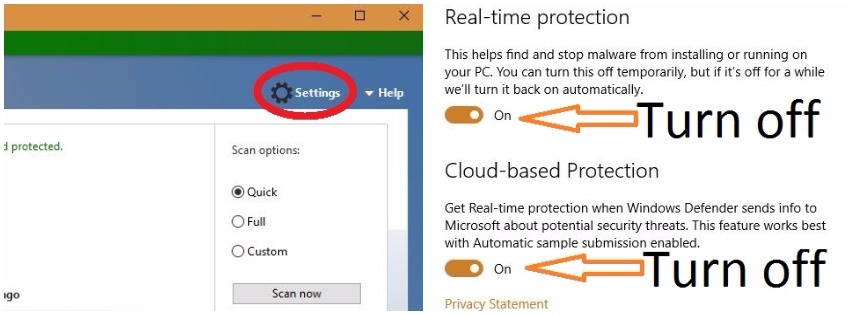
  1. Disable your antivirus because it contains hacking tools, so you need to disable your antivirus. Don’t worry your computer will not be hacked. If you install Metasploit window version, then you have to disable your antivirus. It contains too many hacking tools so disable antivirus.
    • If you don’t know to disable antivirus don’t worry I will tell you
    • Open your antivirus click on settings and turn off Antivirusdisable antivirus
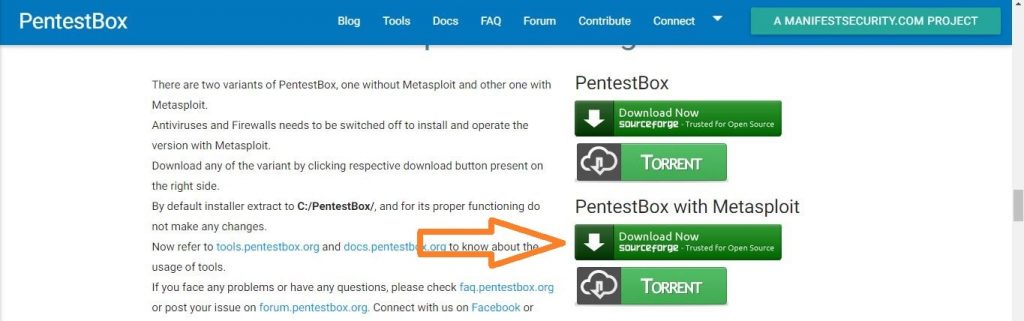
  2. Download it from the official site. It has two variant Pentestbox and Pentestbox with Metasploit. I recommend you to use second because it has Metasploit which is mother father of Penetration testing.downnloding pentestbox with metasploit-min
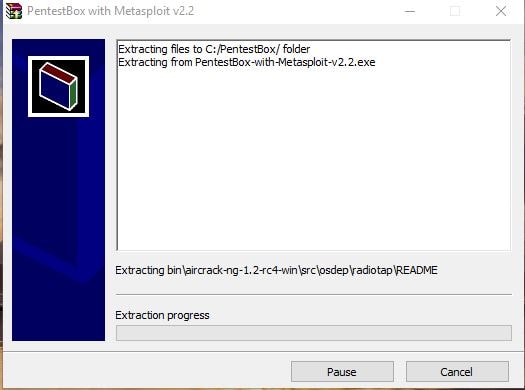
  3. Open this. it will ask you extract folder by default it is c:\pentestbox I strongly recommend you to choose default C:\pentestbox it is easy to uninstall if want in future or easy to launch. Click on Extract button extracting process
  4. It will take some time to extract files. In my computer, it takes 29 minutes to extract fully. After extracting it will close automatically. 
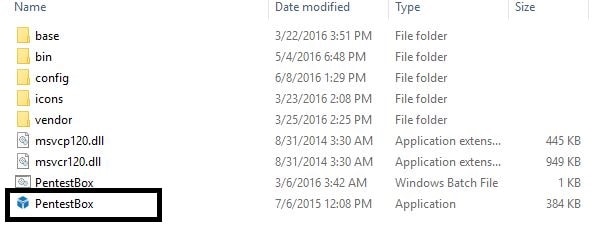
  5. Now installation is done you need to open it. It is not standard software that will present in All programs. This tool compiles Linux programmers into windows. To launch it go to c:\pentestbox [where you install it] and open pentestboxopening pentestbox
Now you are ready to use it. Here is its default look
 pentestbox launch

Basic Introduction to Pentestbox

Basically, in short, this is your Linux terminal
Like Linux terminal you can customize this here I changed color to black and background color to white [I like it notepad style ðŸ™‚ ] notepad styleanyway here are some basic commands what will help you
Type help to see commands.
Software that presents in Pentestbox
It has all tools that you need in penetrating testing not all. Here is List of packages that are available in Pentestbox
Web Vulnerability Scanner
Web Applications Proxies
CMS Vulnerability Scanners
Web Crawlers
Information Gathering
Exploiting tools
Password attacks
Android security
Reverse Engineering
Stress Testing
Sniffing
Forensic Tools
Wireless Attacks
Text Editors
Browser
Linux Utilities: PentestBox provides nearly all Linux utilities in a Windows Environment. Below are the list of the Linux utilities which are inside PentestBox
antiword, basename, bash, bison, bzip2, cat, chmod, cmp, connect, cp, curl, cut, date, diff, dirname, du, env, expr, false, find, flex, gawk, git, grep, gunzip, gzip, head, id, kill, mkdir, md5sum, ls, ln , mv, openssl, patch, ps, rebase, rm, rmdir, scp, sh, ssh-keygen, touch, tr, true, uname, uniq, unzip, wc, xargs
Just last word for this it is Terminal
How to install new tools
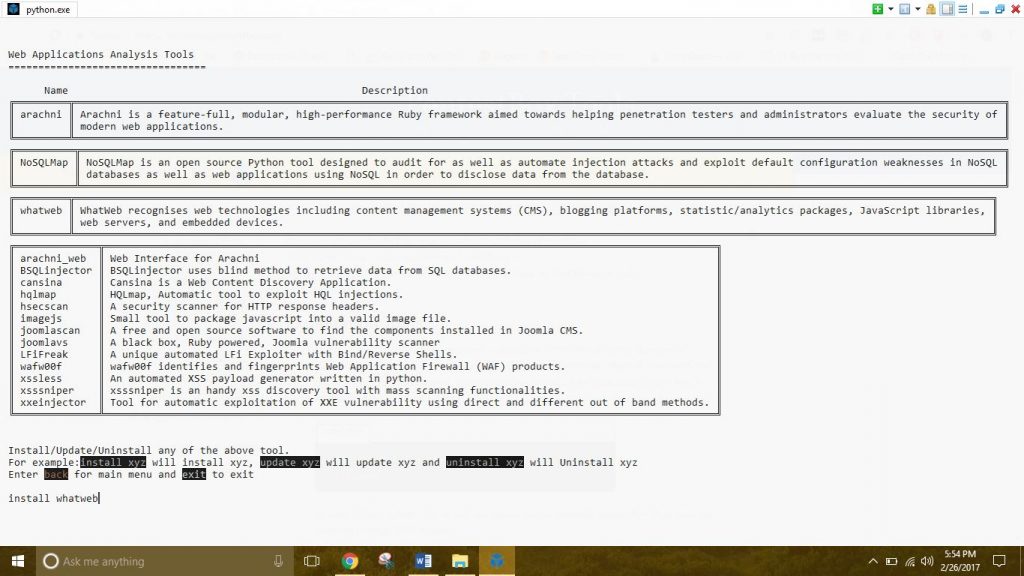
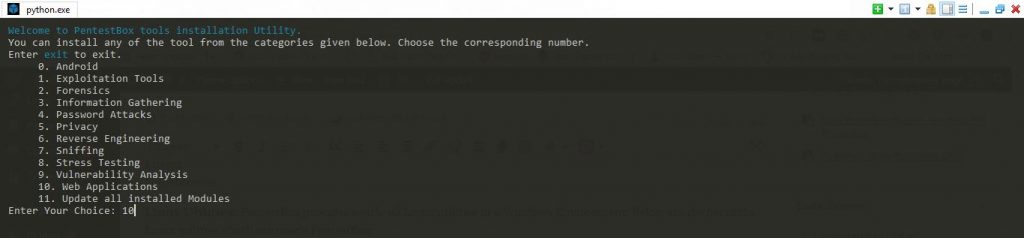
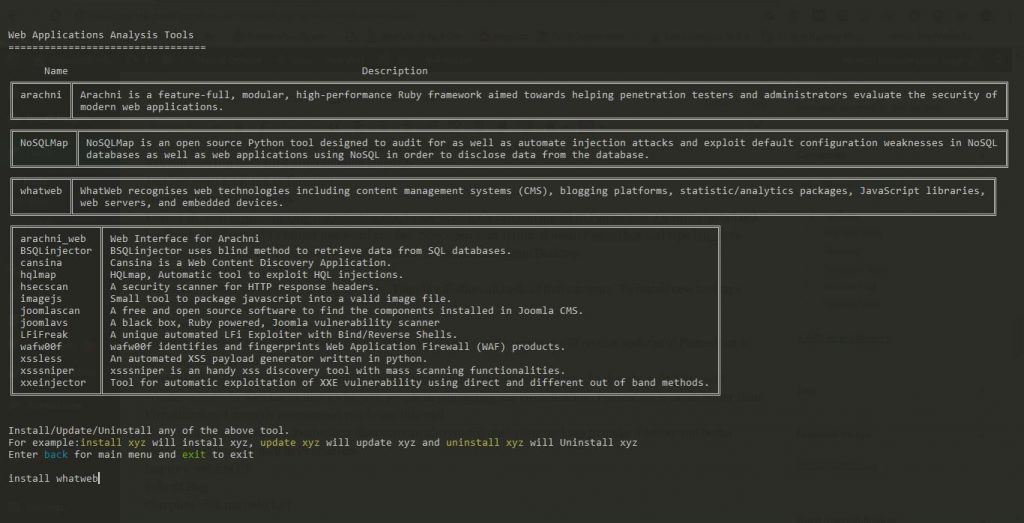
First of all, visit https://modules.pentestbox.org/to see what tools can you install in Pentestbox. I want to install whatweb. Now open your terminal mean Pentestbox and type
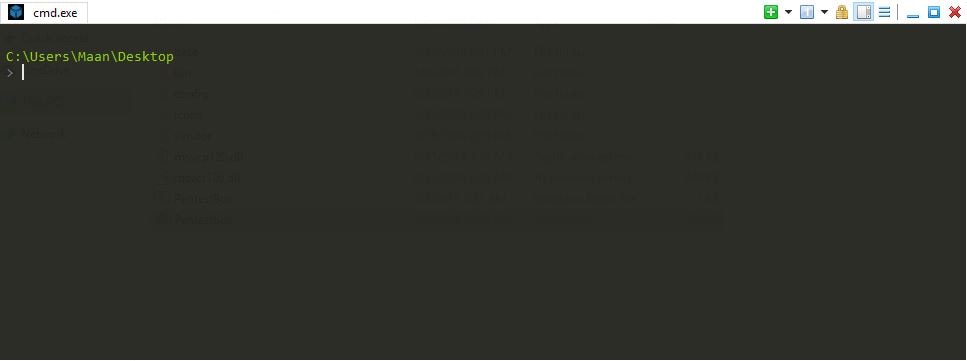
C:\users\Maan\Desktop
>toolsmanager
And select type of your tool by typing number. new tools installationThen It will show all tools of that category. To install new tool type install package name
 type tool name
Limitations of Pentestbox
There is only one Limitation that you can’t install all tools but don’t worry you will receive updates of Pentestbox is updating consequently.
Conclusion: There are many advantages of Pentestbox over Kali Linux. because many critical work can be done by only Microsoft Windows Not why Kali Linux that’s why 50% people in pen testing use virtualization. Pentestbox is much better than Virtualization. I strongly recommend you to use this tool.
I am Using parrot os for Hacking because I like Linux
If you want to contribute in Pentestbox than you can also contribute to this package to make it better and better.
Here is what you can help in Pentestbox
  • Help me complete my todo list.
  • Improve documentation or web site grammar(I’m not a native English speaker)
  • Translate the website or the relevant documentation into your mother tongue.
  • Submit a Bug Report
  • Suggest features and functionality.
  • Improve PentestBox website UI.
  • tSpread the word in the conference, local meetups or in your circle.
See you in the next post
Till then do whatever you want to do what don’t trouble your mother